
trailbuzz317 user manual
How to use the trailbuzz317 app: record a ride, plan a route or a loop, find restrooms, food and events along the trails, and keep an eye on the weather and trail hazards while you ride.
Keep your eyes on the trail. In an emergency, call 911 first.
- Getting started
- Your first ride
- Explore
- Route and loops
- Map
- Nearby: events and places
- Hazards and closures
- Need help
- Your page
- Tips
Getting started
Get the app and sign in
On iPhone
Install trailbuzz317 from the App Store. It opens on Explore, the riding screen.
On the web
Open the trailbuzz317 app in your phone’s browser or on a computer. On a phone you get everything: Explore, turn-by-turn directions and the map. On a computer you get the map, routes and events, with a sidebar, but not Explore or turn-by-turn. Only the iPhone app keeps recording with the screen locked.
Tap Sign in at the top. You can use Continue with Apple, Continue with Google or an email address. New accounts confirm a 6-digit code sent by email.
Or pick Continue without an account. As a guest you can use the map, trails and events, plan routes, and record a ride. It stays on your phone, and you get its Activity summary at the end. You need an account to:
- report a hazard or closure, or suggest a place or an update
- save events
- share a ride live
- keep your rides on your page, with weekly and all-time totals, notes and photos
- add your rides to the community heat map
Step by step
Your first ride
Open Explore and allow location when asked, with Precise Location on. In the iPhone app the compass starts by itself; in a phone’s browser, tap Enable under Heading.
Tap the big green Start trip button in the middle of the map. The Trip timer and Odometer start counting.
Go for a walk, jog, run or bike ride. When you stop, the timer pauses itself after a few seconds and shows Paused · resumes when you move until you start to move again. The pause button beside the trip timer lets you pause the timer yourself, as well.
When you’re done, tap End ride twice. The first tap shows Tap once more to end; tap again within 3 seconds to finish. That way a bump in the road can’t end your ride, and a tap anywhere else keeps you riding. The Activity summary sheet then shows your route, time, miles and average speed.
From there, save it to Apple Health as a walk, run or bike ride (iPhone app), Share ride to share a picture of it (it leaves off the start and finish of your route, so it can’t show where you live), or Export GPX.
Lost signal, or closed the app mid-ride? It picks up where you left off. If you’re signed in, it sends the ride once you’re back in range; without an account, it stays on your phone.
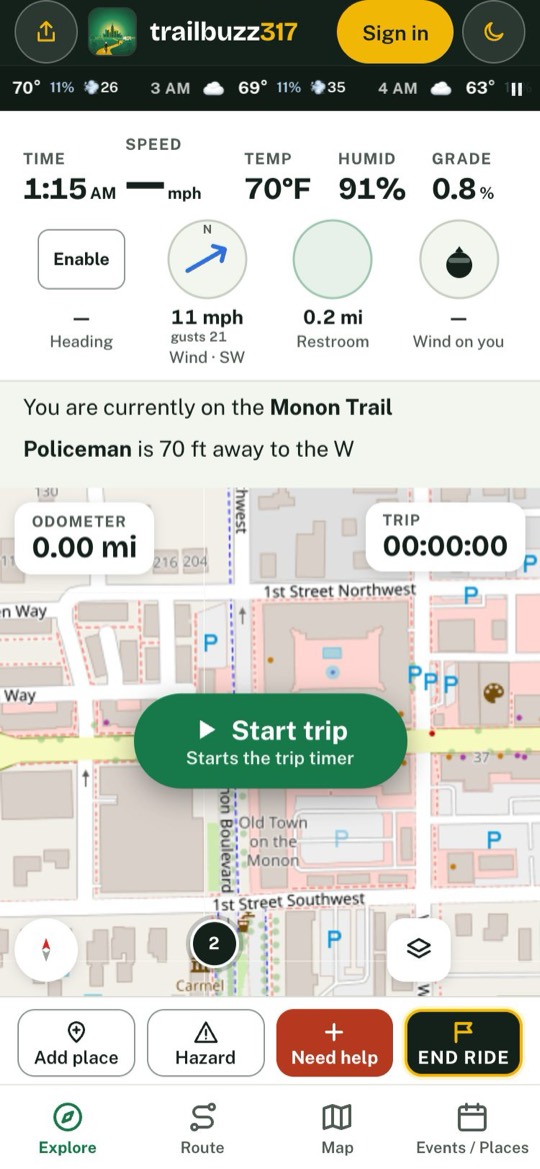
Explore tab
Riding with Explore
The screen you mount on the handlebars, built to read at a glance.
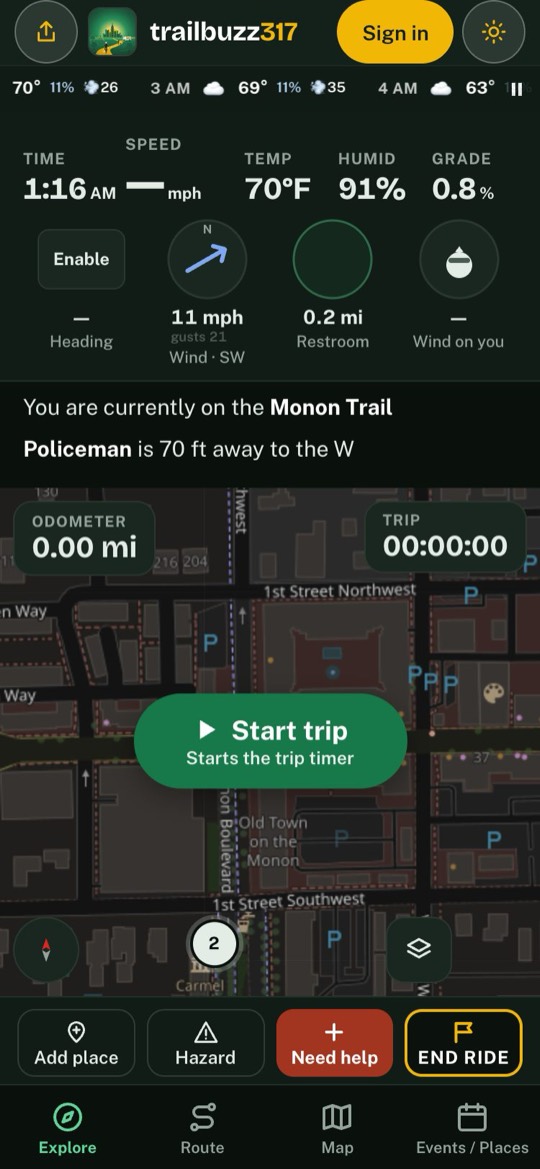
Along the top
Time, Speed, Temp, Humid and Grade. As you speed up, the speed label and the header change color and say so in words: 17+ mph 19+ mph Slow down
If the GPS signal drops, under a bridge, say, then after 5 seconds the speed and the distance to your next turn go grey, and a No GPS pill says how long it’s been (No GPS · 0:12). After 30 seconds the speed shows “—”. Everything comes back with the signal.
The dials
- Heading
- Which way you’re facing.
- Wind
- Wind speed, gusts and direction, and whether it’s a Headwind, Tailwind or crosswind for you.
- Restroom
- How far the nearest public restroom is, with a pointer. Tap it to see the restroom on the map.
Under the dials
Which trail you’re on and at what mile (“On the Monon Trail · mile 6.4”), the nearest place, and a warning when a hazard or a closure is within about 200 feet on your path.
On the map
- The compass needle switches between the map following your heading and north-up.
- The layers button picks what’s drawn: trails, heat map, places, events, hazards and Rain radar.
- The target button brings the map back to you.
The buttons along the bottom
- Add place
- Suggest a place that’s missing.
- Hazard
- Report a hazard or closure where you are.
- Need help
- The emergency card.
- End ride
- Two taps: the first shows Tap once more to end, the second (within 3 seconds) finishes the ride and shows your summary.
Lock Screen
While the trip timer runs, your speed, distance, time, trail and next turn show on the iPhone Lock Screen and in the Dynamic Island.
Not seeing it? In iPhone Settings, turn on Face ID & Passcode → Allow Access When Locked → Live Activities, and Live Activities under trailbuzz317.
Share your ride live
Tap the share button at the top left for a link to send (account needed). Whoever opens it sees your whole ride so far, even if you start sharing partway through, then your route and readouts as you ride, and your summary for 24 hours after.
Tap it again for Send the link again or Stop sharing now.
Turning the phone
On Your page → Screen rotation (iPhone app; without an account, Settings), choose Rotate with phone to ride in landscape, and whether to Lock while riding.
Big numbers
Under Explore readouts on Your page or in Settings, Big numbers shows your speed, distance and trip time large, with the grade and the wind on you beside them. All readouts shows everything, smaller.
On another tab
While a trip is running, a strip above the tabs shows Recording (or Paused), your miles and trip time. Tap Back to ride to return to Explore.
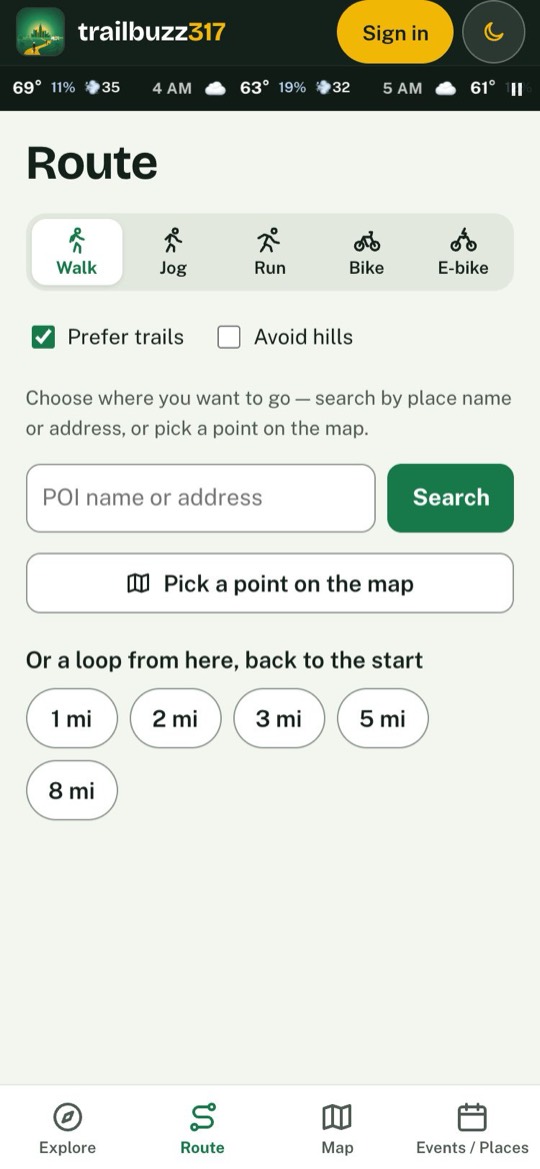
Route tab
Plan a route or a loop
Directions favor trails and keep you out of reported closures.
Pick how you’re going: Walk, Jog, Run, Bike or E-bike. Leave Prefer trails on, and tick Avoid hills if you like.
Search for a place or address, or tap Pick a point on the map. You can also tap Route here on any place.
Compare the options: each shows the time, distance, share on trails and climb, and the best is marked Best. Check any closure, hazard or rain notes under the map.
Check the distance, time and climb under the destination, then tap Start trip at the bottom. Your trip starts and Explore takes over with turn-by-turn directions, the distance to go and an arrival time, and finds a new route if you go off it. The speaker button on the directions reads each turn aloud. When you arrive, end the ride with two taps on End ride, as on Explore. While a ride is going, End ride is also at the top of the Route tab, with the same Tap once more to end.
A loop from where you are
Under Or a loop from here, back to the start, tap a distance. You get up to three loops that start and end where you are, on trails where they can be.
| Mode | Loop distances |
|---|---|
| Walk, Jog | 1 mi2 mi3 mi5 mi8 mi |
| Run | 2 mi3 mi5 mi8 mi10 mi |
| Bike, E-bike | 5 mi10 mi15 mi20 mi25 mi |
- Stops: add up to three with Add a stop, or Add stop beside anything in the On the way list.
- Bosch eBike: Export to Bosch Flow saves a GPX file to import in the Flow app under Ride → My routes → Import GPX file.
- Turn by turn lists every turn before you go.
Map tab
Find trails and what’s on them
The trails of Hamilton, Marion, Hendricks and Boone Counties, with the places and events along them.
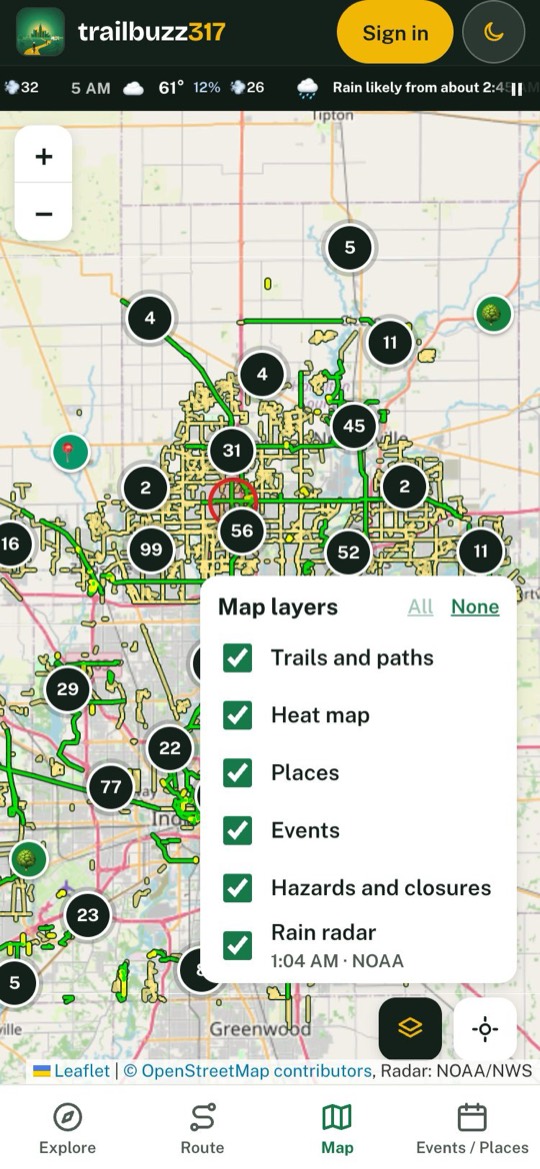
- A trail
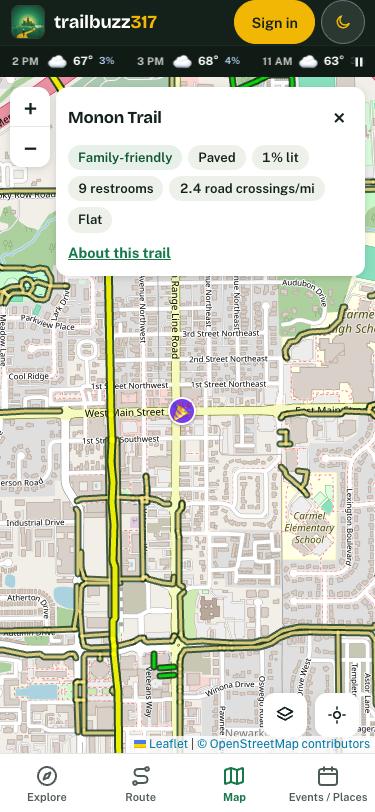
- Tap a trail line for its facts: length, paved or not, lighting, restrooms, road crossings per mile and how hilly it is. Trail page opens its page.
- A place
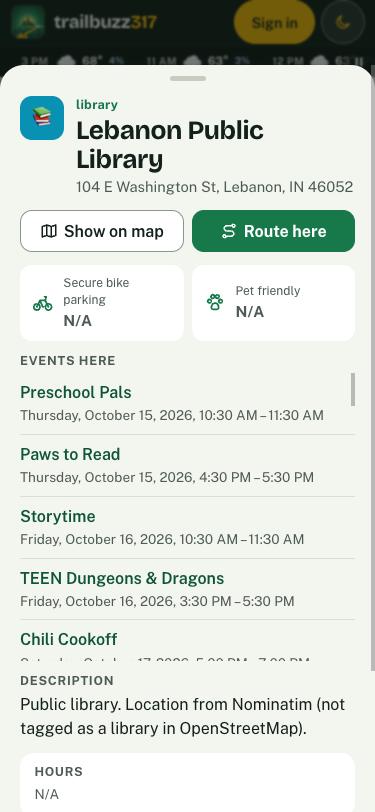
- Tap a marker for its address, hours, whether it’s pet friendly and the events held there, with See it on the map and Route here.
- A number
- A cluster of places: zoom in, or tap it to list what’s there.
- An event
- Opens its details, with See it on the map, Add to calendar and Full event page.
- Hazards
- Tap a hazard or closure marker for what it is, the dates and any detour.
Map layers
The layers button at the bottom right turns on or off Trails and paths, Heat map (where people ride most), Places, Events, Hazards and closures and Rain radar. The radar row shows when NOAA made the picture. Your choices are remembered, except hazards, which always come back on.
The weather strip
The line under the header scrolls through the next few hours: temperature, chance of rain and gusts. When rain is coming it leads with a line such as “Rain likely from about 5:30 PM”. Tap a weather alert for what to do; the pause button stops the scrolling.
Very short trails, under half a mile, are drawn on the map but have no name and can’t be tapped.
Trail facts
Tapping a trail line answers the usual questions before you go: is it family-friendly, paved, lit at night, how many restrooms, how often it crosses roads, and whether it’s flat.
Nearby tab
Find events and places near you
Switch between Events and Places. Events are listed by day (Today, Tomorrow, This weekend, Later); places nearest first, with how far. Tap one to open it. On a computer it’s the sidebar.
- Search
- A place or event name.
- Chips
- Events: Today, This weekend, Near me. Places: Restrooms, Repair, Trailheads, Parks. Filters opens the rest.
- Filter by
- Type (restrooms, restaurants, bike shops, bike repair stands, parks, libraries, AEDs, bike share and more), and From / To dates; Today shows just today.
- Near location
- Things along one trail, in a town or county, or within a few miles of an address or where you are. The slider sets how far.
- Sort by
- Date, distance or name.
On each event
- Save keeps it on Your page → Saved events (account needed). From there, Subscribe in your calendar puts every saved event in your phone’s calendar.
- Remind me (iPhone app) notifies you an hour before, or at 8 AM for all-day events. No account needed.
- Add to calendar adds just that one.
- Full event page opens the whole listing on the site.
- See it on the map marks it with a star and hides other events until you tap Show events.
Events come from each organizer’s own calendar. Check the original listing for last-minute changes.
Help other riders
Report a hazard or closure
Reports go to an admin before they appear on the map. You need an account.
Closure
The path can’t be used: Path blocked, no detour or Path blocked, detour. Routes go around closures.
Hazard
Passable with care: Surface damage, Path blocked, but navigable, Dangerous intersection or High water. Routes can go through a hazard but tell you about it, and Explore warns you as you get near.
Tap Hazard on Explore, or Report a hazard or closure on a computer.
Choose Hazard or Closure, and the type.
Tap Use my location or Pick on map, choose the trail if you know it, and add a photo if you can.
Tap Submit report.
Something wrong with a place, like old hours or a business that’s closed? Open it and tap Suggest an update, or Report for anything unsafe or offensive.
Safety
If you need help
In an emergency situation, call 911 first.
Tap Need help on Explore. The emergency card has a Call 911 button and shows what to tell the dispatcher: the trail, the street and nearest intersection, what you’re near, and your GPS position. It also lists where a vehicle can reach the trail, and Share location sends your position to someone.
Your page
Your rides and settings
Tap your picture at the top of the app.
Your rides
Every ride, with filters by date and sorting by length or speed. Open one for distance, moving time, average and top speed, climb, and the map. Name it, add a note or photo, export a GPX file, save it to Apple Health, or delete it.
Video ride
On a past ride, Add video from your camera lines your camera’s footage up with the ride (GoPro by GPS, other cameras by the clock). Trim it with Start here and End here, and publish it to Ride videos if you like.
Privacy and sharing
Choose whether your rides go on the community heat map: Share my rides or Don’t share. Shared rides have their start and finish trimmed off, and you can take any ride, or all of them, off later.
Your account
Your Nickname is what others see on a ride you share. Here you can also change your email or password, link Apple or Google, sign out of other devices, or delete your account.
To change your email, confirm it’s you with your password. If you sign in only with Apple or Google, the app first emails a code to your current address. Then enter the code sent to the new one; your old address gets a note that it changed.
Good to know
Tips
- Night mode
- Dark colors for riding after dark. Under Night mode on Your page or in Settings: Auto (the default) turns them on at sunset and off at sunrise; Day and Night keep one. The moon button at the top switches until the next sunrise or sunset.
- Text size
- In the iPhone app, text follows your iPhone’s own Text Size setting; on the web, your browser’s. At larger sizes Explore gives its readouts more room.
- Restrooms
- Only public restrooms are listed; customers-only ones aren’t shown.
- No signal
- A line under the header says No connection. Showing what’s saved; your ride keeps recording. If you’re signed in, the ride is sent when you’re back in range. New map areas, weather and directions need a connection.
- Precise Location
- Explore measures your distance and speed only with Precise Location on. If it’s off, the iPhone app asks to turn it on for the ride; if it stays off, a line on Explore says the ride’s distance and speed can’t be measured, with Open Settings. Turn it on in Settings › trailbuzz317 › Location.
- Sunrise and sunset
- In the hour before, the message line counts down to them.
- Trail and town pages
- Every trail and town has a page on this site. In the iPhone app they open in a panel with Back to the app at the top.
- Directions
- Directions and trail details can be wrong. Watch for signs and use your judgment.
Still stuck? See Support or read about safety on the trail.